Pack & Go: Automate your picking and packing with Sendcloud


Last updated:
The proper functioning of warehouse processes is essential for operational improvement; however, all too often errors happen. The question is: how do you prevent human errors when it comes to picking and packing? The answer is automation! In this article, we provide an in-depth guide on how Pack & Go can improve not only the accuracy rate when picking and packing, but also the efficiency of operations.
“Automated and efficient warehouses in the survey were 76% more likely to boost inventory accuracy to 99% or higher, 36% more likely to have reduced labour costs by an average of 3% per year, and 40% more likely to consistently ship within one day of an order's placement”

When should you automate your picking and packing process?
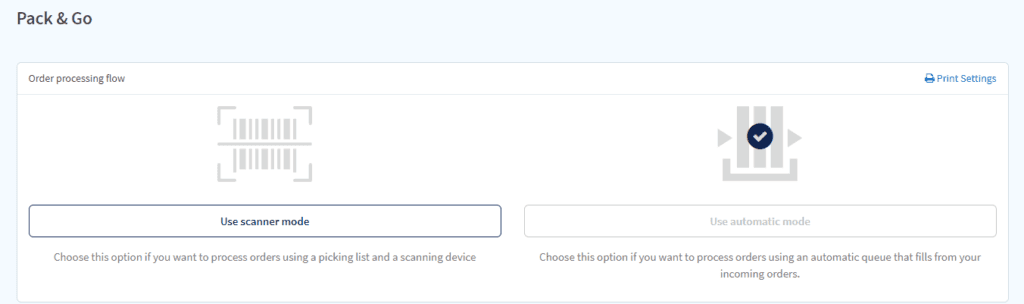
At Sendcloud, we know that automation is equally important for small businesses as well as larger clients. That is why we have designed the Pack & Go feature with two modes: scanner mode intended to be used alongside a barcode scanner, especially useful for bulk order processing and warehouse set-ups; or use the automatic mode — no barcode scanner is required for handling smaller order numbers.
To process your orders with automatic or scanner mode, visit "Settings" and "Pack & Go". Next, select "Use scanner mode" or “Use automatic mode”.
Do you have a barcode scanner? Save minutes on every order with the Pack & Go barcode scanner function.
It’s easier than you think to switch from handling shipping labels manually to fully automating the process with barcode scanners. Using Pack & Go, you can process your picking and packing slips along with printing your labels the minute an item is scanned!
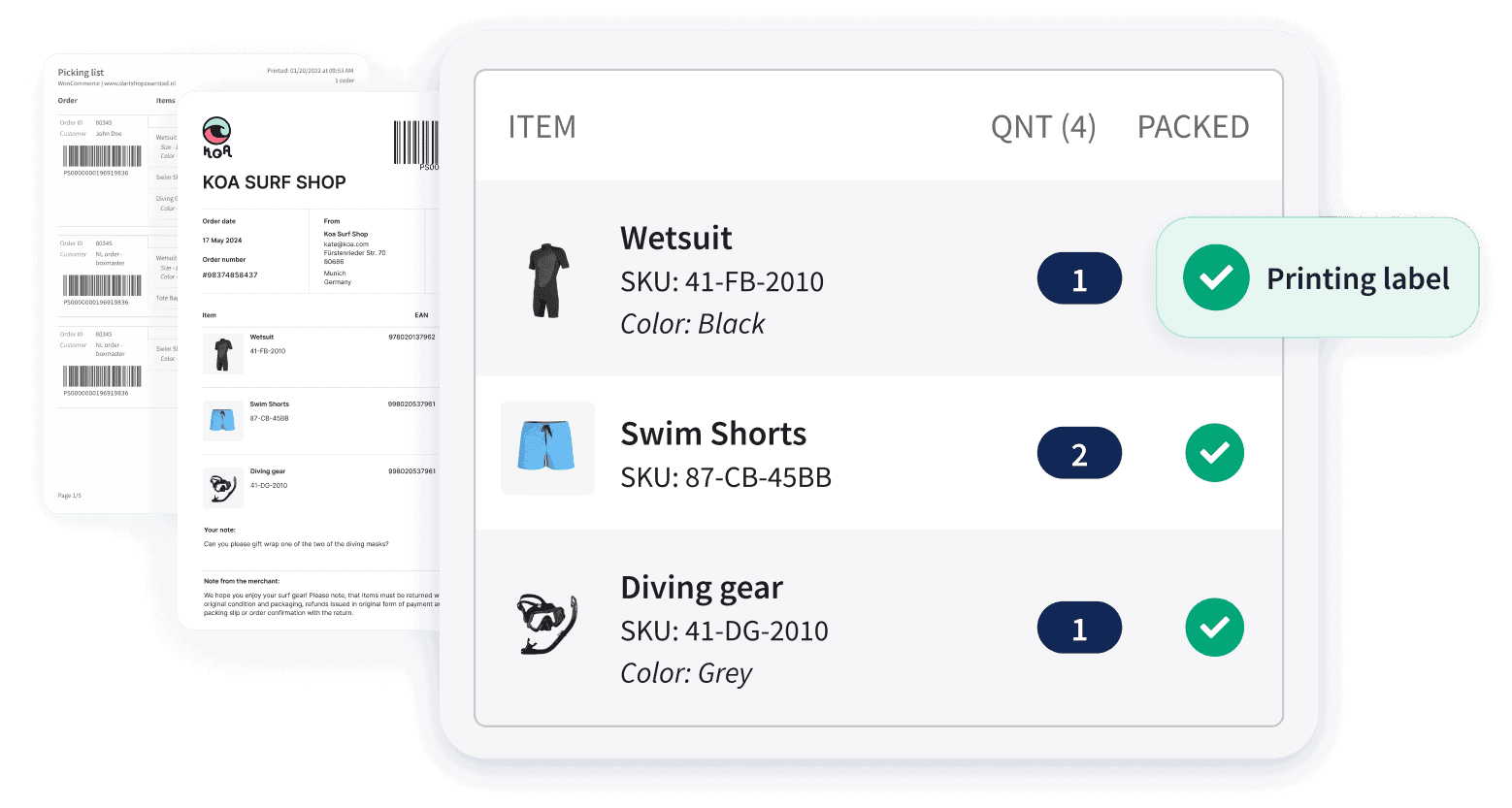
The Pack & Go feature allows you to see what you want to pack and where to go; your picking and packing staff can take a scanner with them, and once an item is scanned a label is printed with each item scanned. This eliminates the need to walk around with picking and packing slips. Pack & Go is a more secure way to process your orders since you can set the weight, address and apply smart shipping rules.
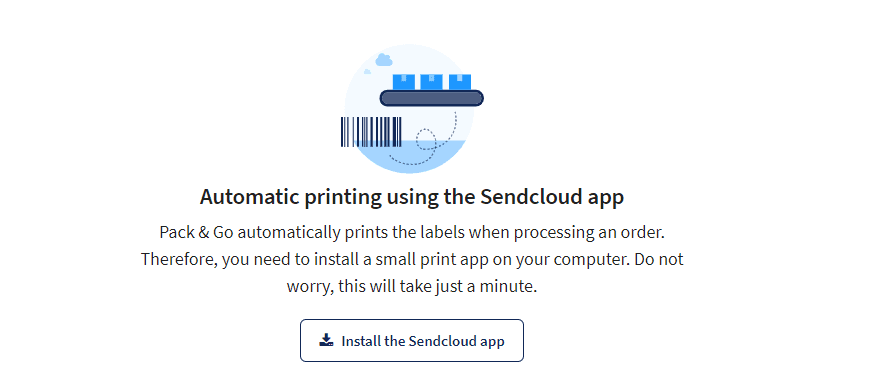
Before starting, make sure you have downloaded the Sendcloud printing app! This can be done by clicking on the CTA or navigating to Settings & Printing and clicking "Download the print client" to begin downloading and installing the app.
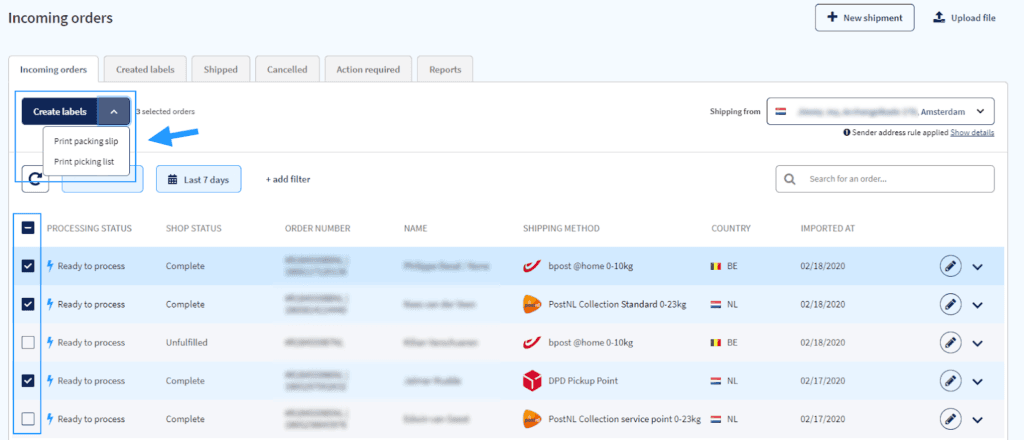
In the Pack & Go tab, you can select whether or not you want to automatically print packing slips alongside your labels. Select "print Packing Slips" from the drop-down menu in Print Options and select the A4 printer you wish to use.
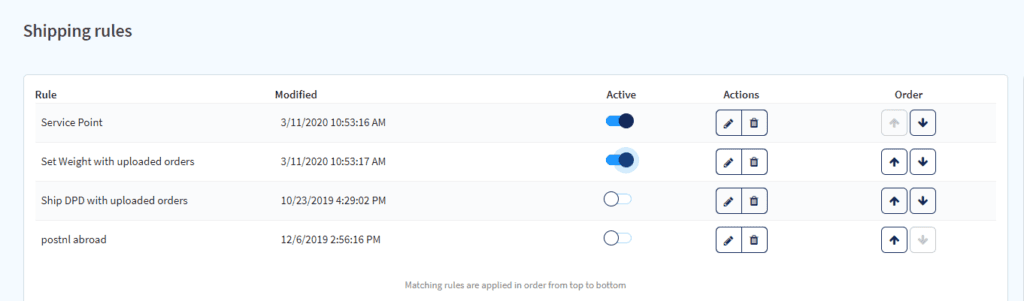
What are smart shipping rules and how can they help?
Sendcloud shipping rules let you set conditions (“if this, then that”). Setting up shipping rules lessens the need to individually edit orders as they appear in the queue. This reduces the time spent picking and packing and creates the ideal workflow. For example, you can choose which courier to use for orders above a specific weight. Or pick a certain courier for internal shipping. Please note that shipping rules apply from top to bottom. The last rule will always override the previous one.
Process your orders more accurately with Pack & Go
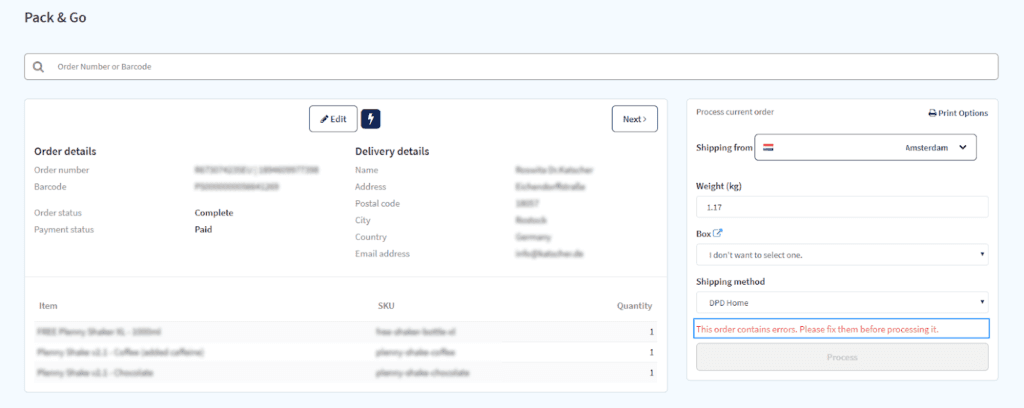
Keep track of all orders and easily make changes with Pack & Go — once you have configured your printer settings and set up any smart shipping rules that you wish to use, you can start processing your orders. Simply click on Pack & Go and you will see that the orders received from your webshop integration will appear.
Processing your orders with Pack & Go FAQ
I don’t have a barcode scanner; how do I process my orders?
Automatic is the ideal Pack & Go mode to simply pack the box based on the products in the order as they appear on the screen.
I’ve made an error filling in my order details; how can I fix this?
Here at Sendcloud we realise that human error is inevitable; that is why we allow all orders in Pack & Go to be easily edited. Take, for example, if an order has errors such as a missing house number or incorrect postcode, you will be prompted to correct the order by clicking the pen icon + Edit button before proceeding. Orders can also be fixed by filtering in the incoming order view by selecting “Contains errors”, which will pull up all orders with errors.
How do you know if a shipping rule has been applied to the customer's order?
Easy! Based on the rules you have already configured, the blue lightning bolt icon will appear when a shipping rule is applied in relation to a sender's address, as in the example above.
Don’t wait, automate!
Now that we are all confident that e-commerce is here to stay, more and more businesses are starting to recognise the need for automation. Pack & Go eliminates picking labour and reduces the risk of repetitive manual handling, saving you both time and money!

As former UK Content Marketing Specialist at Sendcloud, Stephanie specialized in content strategy, SEO, and thought leadership for the UK e-commerce and logistics market.
How much time can you save on shipping?

Share
Recommended For You
Shipping
Shopify Shipping: The Complete Guide for E-commerce Stores
Learn how Shopify shipping works, how to set it up, and how to optimise costs, delivery options, and performance as your shop grows.

Integrations
Best Shopify apps for e-commerce stores (including shipping & automation tools)
Discover the best Shopify apps by category and learn how to build a scalable app stack without adding complexity.

Shipping Packaging
E-commerce
Shipping label guide: What is a shipping label and how does it work?
Learn what a shipping label is, what information it contains and how shipping labels work in e-commerce.