Easily create and print FedEx shipping labels with Sendcloud

Quickly generate and print your FedEx shipping labels with Sendcloud. Whether you’re shipping locally or internationally, our complete multi-courier platform integrates seamlessly with FedEx and your e-commerce system. Save time, reduce errors, and optimise your shipping process today.
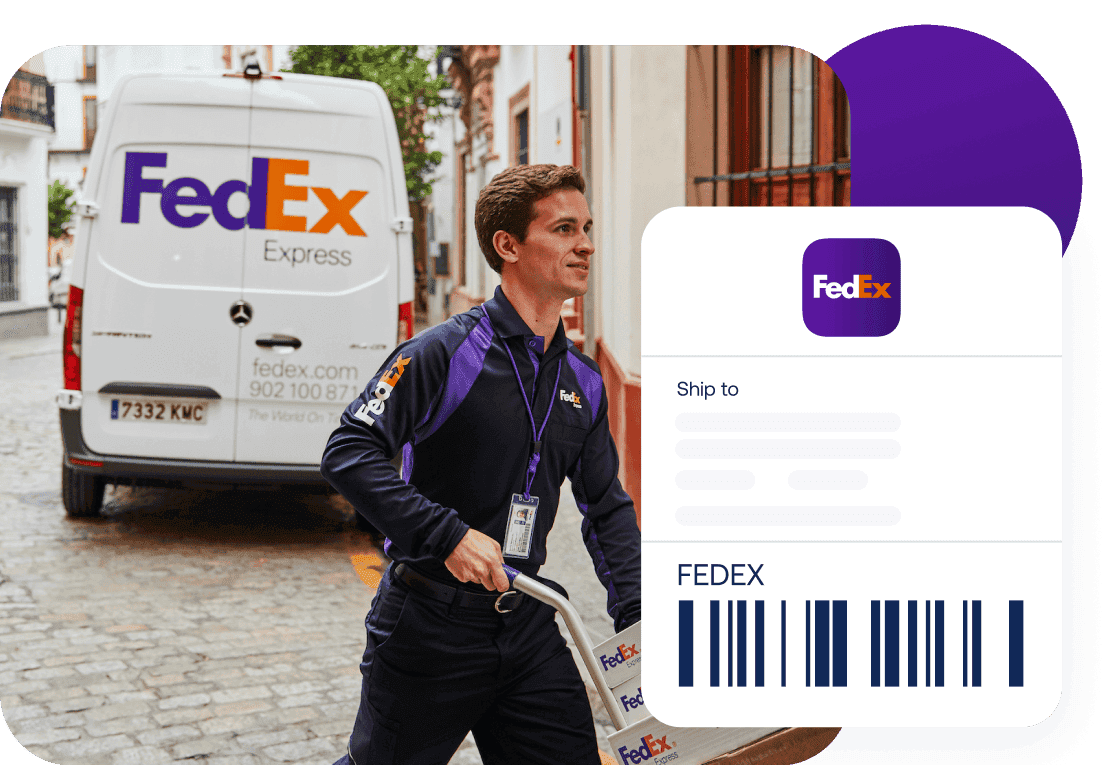
“Through Sendcloud, we’ve set up shipping rules that automatically print the correct shipping label based on weight, dimensions, and zip code.”

Fitwinkel
Get an all-in-one shipping solution

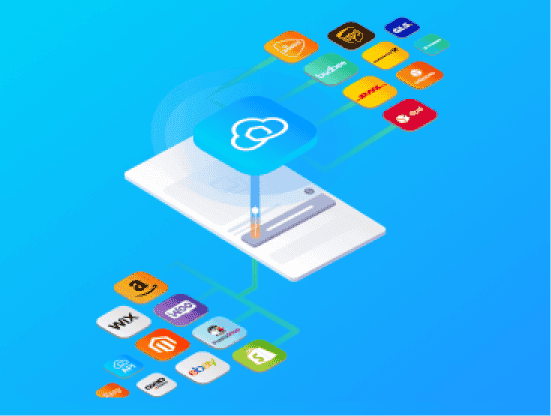
Manage your entire shipping process, from label creation to tracking, on one platform. Save time and money without switching tools.
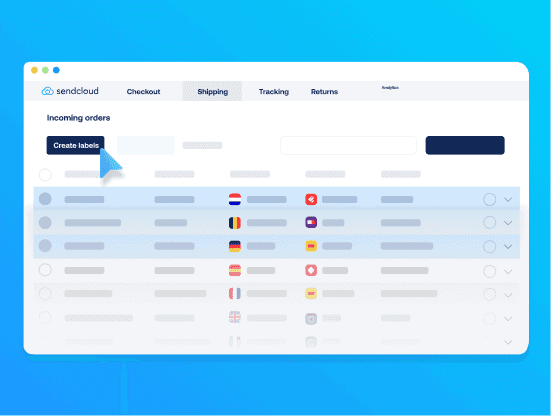
Automate your label creation

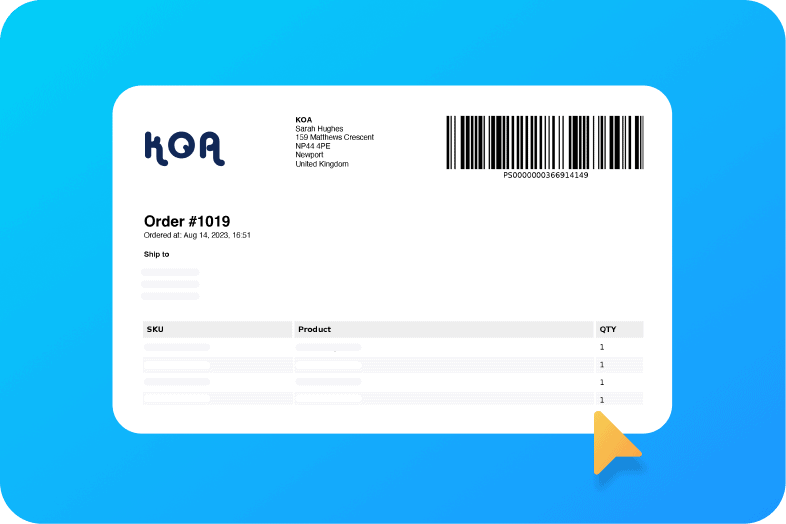
Streamline your workflow by automating the label generation for each order. Minimise manual entry, save time, and enhance accuracy with just a few clicks.
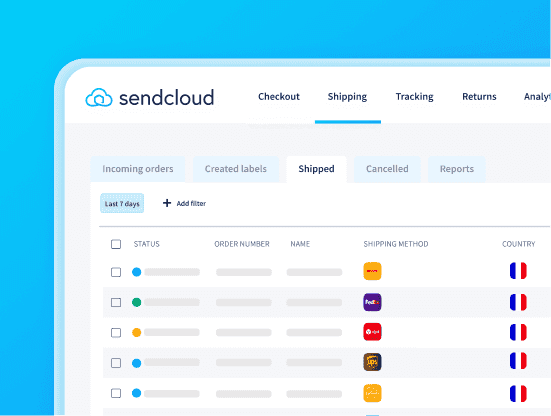
Track all your shipments in one place

Our parcel tracking tool offers a comprehensive view of every package you’ve sent. Stay ahead with updates to cut down on WISMO inquiries.

What our customers say

FAQs

How do I create FedEx shipping labels in Sendcloud?

To create FedEx shipping labels in Sendcloud, first connect your webshop integration, and your orders will automatically be imported into the Incoming Orders overview.

In the order edit view, you can add insurance or adjust details such as weight and shipping methods. Some FedEx shipping options available via Sendcloud include FedEx International Connect Plus and FedEx International Economy. For non-EU shipments, you’ll need to provide product information (description, value, origin, and HS code) for customs documentation.

Once your orders are ready, click Create label. If your printer is configured, the labels will print automatically; otherwise, they’ll be downloaded as a PDF.

How can you cancel a FedEx shipping label in Sendcloud?

Select the FedEx shipments that you want to cancel in your Created Labels overview. Select Cancel from the dropdown menu (next to Print Label). Confirm the cancellation and the label will be moved to your Cancelled Labels tab.

If you cancel a label on the same day it was created (before 23:59), you won’t be charged. If you cancel a label within 42 days, the cost will be adjusted on your next invoice. If the shipment is not cancelled within those 42 days, the cost will no longer be credited. Additionally, if a cancelled label is later scanned by the courier, a charge of €1 will appear on your invoice under “Reversed cancellation”.

Is it possible to ship multiple packages with the same FedEx label?

It is not possible to use a shipping label for more than one parcel. In most cases, FedEx will detect a duplicated label and return the last scanned parcel to the sender. If a duplicated label somehow enters the sorting system, the parcel cannot be tracked because the tracking number is already associated with the first parcel. Therefore, it is highly recommended to create a new label for each parcel you ship.

How can I print my FedEx shipping label in Sendcloud?

Once your online shop is integrated with Sendcloud, all of your orders from the last 30 days will be imported into your Incoming Order overview. To create your FedEx shipping labels, simply select the orders you wish to ship via FedEx and click Create labels.

Your labels will be downloaded in PDF format for printing, or will print automatically if you have set up your label printer in your Sendcloud account settings. Attach the labels to your parcels, and they’re ready for shipping.

Can I use clear tape to secure my FedEx shipping label?

Yes, you can use clear tape to secure your FedEx shipping label. Tape the label onto a flat surface of the item being shipped and cover it with clear tape. Avoid using “flying tags” attached by string or metal. Blunt any sharp or protruding edges with taped-on, corrugated cardboard pieces. Protect the item’s surface as needed. Please note that an Additional Handling charge may apply if this is not followed.

For more tips and tricks on choosing the best packaging for your products, check out the following Help Center article.

FAQs

How do I create FedEx shipping labels in Sendcloud?

To create FedEx shipping labels in Sendcloud, first connect your webshop integration, and your orders will automatically be imported into the Incoming Orders overview.

In the order edit view, you can add insurance or adjust details such as weight and shipping methods. Some FedEx shipping options available via Sendcloud include FedEx International Connect Plus and FedEx International Economy. For non-EU shipments, you’ll need to provide product information (description, value, origin, and HS code) for customs documentation.

Once your orders are ready, click Create label. If your printer is configured, the labels will print automatically; otherwise, they’ll be downloaded as a PDF.

How can you cancel a FedEx shipping label in Sendcloud?

Select the FedEx shipments that you want to cancel in your Created Labels overview. Select Cancel from the dropdown menu (next to Print Label). Confirm the cancellation and the label will be moved to your Cancelled Labels tab.

If you cancel a label on the same day it was created (before 23:59), you won’t be charged. If you cancel a label within 42 days, the cost will be adjusted on your next invoice. If the shipment is not cancelled within those 42 days, the cost will no longer be credited. Additionally, if a cancelled label is later scanned by the courier, a charge of €1 will appear on your invoice under “Reversed cancellation”.

Is it possible to ship multiple packages with the same FedEx label?

It is not possible to use a shipping label for more than one parcel. In most cases, FedEx will detect a duplicated label and return the last scanned parcel to the sender. If a duplicated label somehow enters the sorting system, the parcel cannot be tracked because the tracking number is already associated with the first parcel. Therefore, it is highly recommended to create a new label for each parcel you ship.

How can I print my FedEx shipping label in Sendcloud?

Once your online shop is integrated with Sendcloud, all of your orders from the last 30 days will be imported into your Incoming Order overview. To create your FedEx shipping labels, simply select the orders you wish to ship via FedEx and click Create labels.

Your labels will be downloaded in PDF format for printing, or will print automatically if you have set up your label printer in your Sendcloud account settings. Attach the labels to your parcels, and they’re ready for shipping.

Can I use clear tape to secure my FedEx shipping label?

Yes, you can use clear tape to secure your FedEx shipping label. Tape the label onto a flat surface of the item being shipped and cover it with clear tape. Avoid using “flying tags” attached by string or metal. Blunt any sharp or protruding edges with taped-on, corrugated cardboard pieces. Protect the item’s surface as needed. Please note that an Additional Handling charge may apply if this is not followed.

For more tips and tricks on choosing the best packaging for your products, check out the following Help Center article.

FAQs

How do I create FedEx shipping labels in Sendcloud?

To create FedEx shipping labels in Sendcloud, first connect your webshop integration, and your orders will automatically be imported into the Incoming Orders overview.

In the order edit view, you can add insurance or adjust details such as weight and shipping methods. Some FedEx shipping options available via Sendcloud include FedEx International Connect Plus and FedEx International Economy. For non-EU shipments, you’ll need to provide product information (description, value, origin, and HS code) for customs documentation.

Once your orders are ready, click Create label. If your printer is configured, the labels will print automatically; otherwise, they’ll be downloaded as a PDF.

How can you cancel a FedEx shipping label in Sendcloud?

Select the FedEx shipments that you want to cancel in your Created Labels overview. Select Cancel from the dropdown menu (next to Print Label). Confirm the cancellation and the label will be moved to your Cancelled Labels tab.

If you cancel a label on the same day it was created (before 23:59), you won’t be charged. If you cancel a label within 42 days, the cost will be adjusted on your next invoice. If the shipment is not cancelled within those 42 days, the cost will no longer be credited. Additionally, if a cancelled label is later scanned by the courier, a charge of €1 will appear on your invoice under “Reversed cancellation”.

Is it possible to ship multiple packages with the same FedEx label?

It is not possible to use a shipping label for more than one parcel. In most cases, FedEx will detect a duplicated label and return the last scanned parcel to the sender. If a duplicated label somehow enters the sorting system, the parcel cannot be tracked because the tracking number is already associated with the first parcel. Therefore, it is highly recommended to create a new label for each parcel you ship.

How can I print my FedEx shipping label in Sendcloud?

Once your online shop is integrated with Sendcloud, all of your orders from the last 30 days will be imported into your Incoming Order overview. To create your FedEx shipping labels, simply select the orders you wish to ship via FedEx and click Create labels.

Your labels will be downloaded in PDF format for printing, or will print automatically if you have set up your label printer in your Sendcloud account settings. Attach the labels to your parcels, and they’re ready for shipping.

Can I use clear tape to secure my FedEx shipping label?

Yes, you can use clear tape to secure your FedEx shipping label. Tape the label onto a flat surface of the item being shipped and cover it with clear tape. Avoid using “flying tags” attached by string or metal. Blunt any sharp or protruding edges with taped-on, corrugated cardboard pieces. Protect the item’s surface as needed. Please note that an Additional Handling charge may apply if this is not followed.

For more tips and tricks on choosing the best packaging for your products, check out the following Help Center article.

Get started with FedEx shipping labels today

Simplify your entire shipping process with our user-friendly platform. Whether you’re a small business or expanding quickly, Sendcloud grows with you.